



Photo Templates
How Many Photos Should You Put in a Photo Collage?
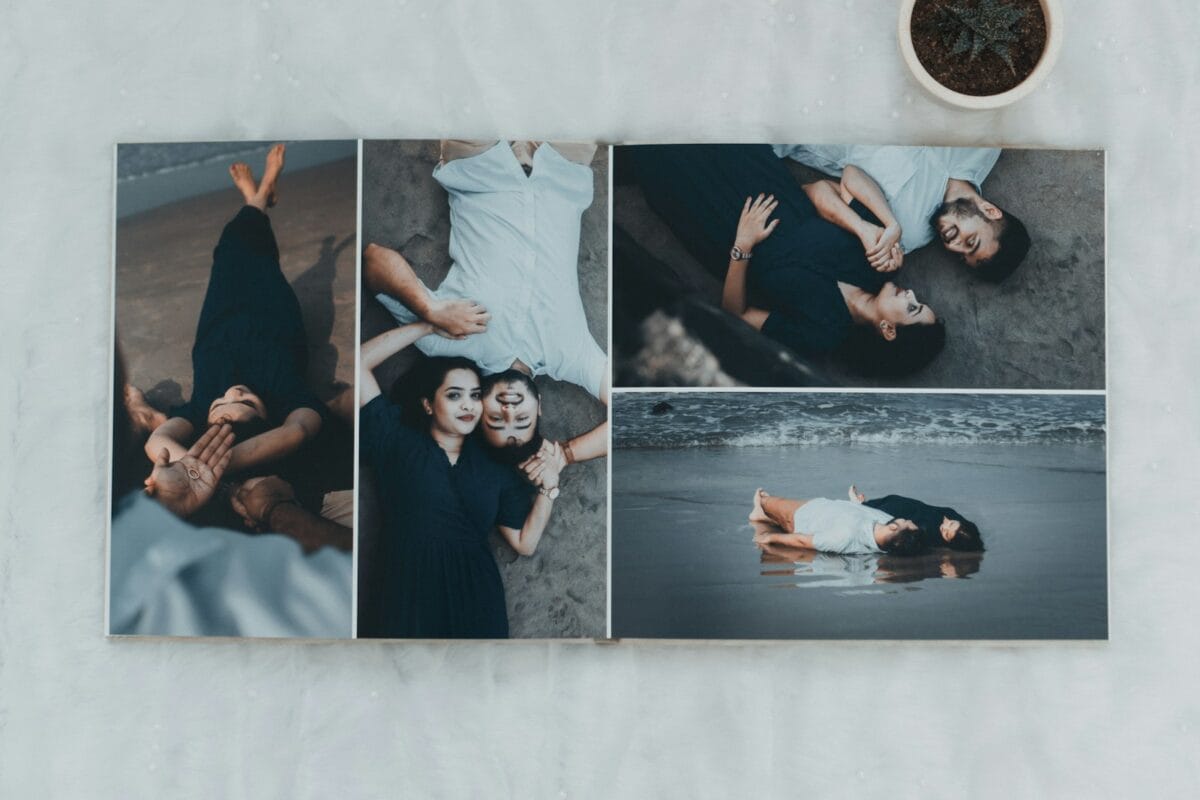
Oct
Choosing how many photos in a photo collage can feel harder than arranging the pictures themselves. Include too few, and the design may feel empty. Add too many, and faces become tiny or the whole composition looks crowded. The best number depends on your print size, viewing distance, layout, and the story you want to tell.
There is no universal answer for how many photos in a photo collage work for every project. However, you can make a confident choice by starting with your available space and deciding which memories matter most. This guide explains practical photo-count ranges, how to balance images, and when a ready-made collage template can save time.
How Many Photos in a Photo Collage Is Ideal?
For a small collage, start with around 4–12 photos. A medium wall print may comfortably hold 12–30 images, while a large memory poster can feature 30–100 or more. These ranges are planning guidelines, not strict rules. The right number of photos in a photo collage depends on image dimensions, spacing, and viewing distance.
First, decide whether you want each photograph to stand out individually or whether you want to capture a large collection of memories. A few large images suit a simple, gallery-style display. In contrast, many smaller images work well for a milestone poster or a visual timeline.
Most importantly, count usable photos rather than every image in your camera roll. A smaller set of meaningful, clear pictures often creates a stronger story than a crowded design filled with duplicates.
How Many Photos in a Photo Collage by Size
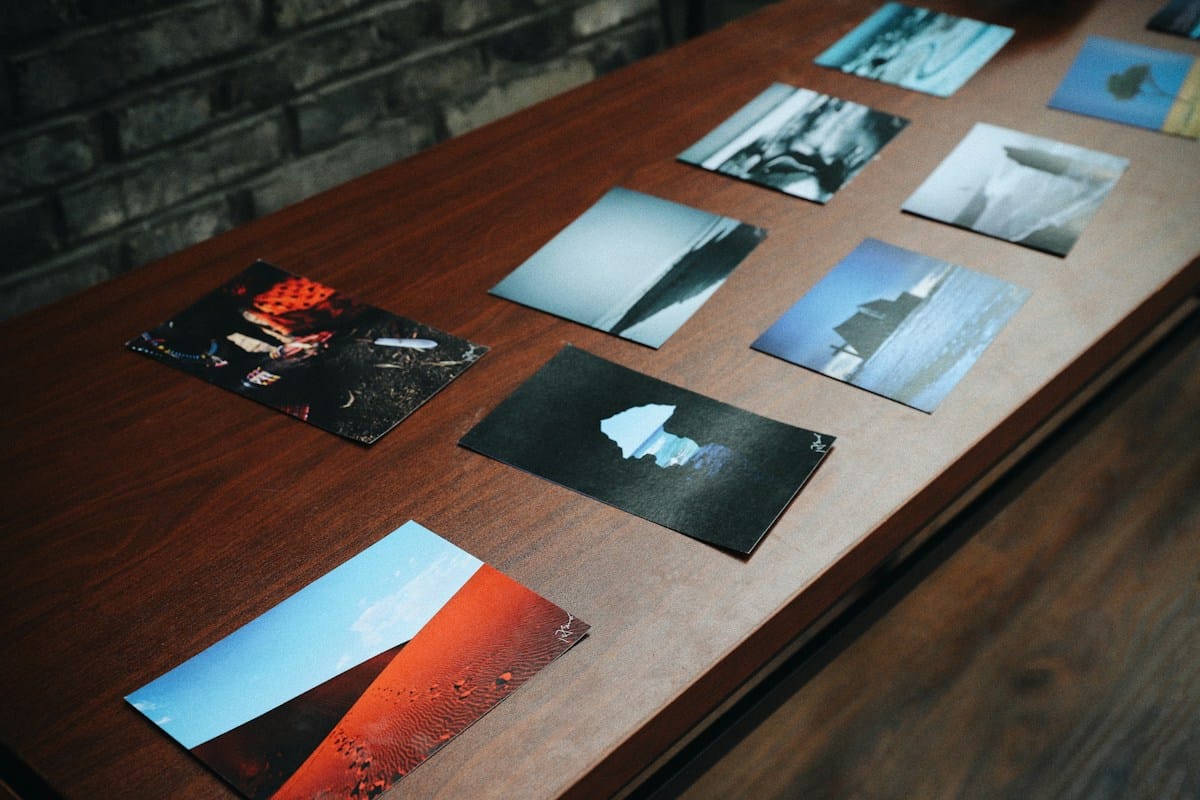
Small prints and desktop displays
For a small print, digital greeting, or desktop display, try 4–12 photographs. This range gives each image enough room to remain recognizable. A simple two-by-two grid, three-by-three grid, or central-photo arrangement can work well.
Additionally, choose photographs with a clear subject. Small frames do not leave much room for busy backgrounds or distant faces. Crop each image carefully and preview the design at its final size before you export it.
Medium wall art
For medium wall art, consider 12–30 photographs. This range provides variety without requiring every image to become a tiny thumbnail. A regular grid creates a neat, modern look, while a mixed-size layout gives selected memories more emphasis.
Next, check the width and height of the print. A landscape layout may fit travel photos and group pictures, while a portrait format can suit a hallway or narrow wall. Let the available shape guide the number of rows and columns.
Large memory posters and milestone displays
Large posters can accommodate 30–100 photos or more when the design has enough space. This approach suits anniversaries, graduations, birthdays, family histories, and year-in-review displays. However, a high photo count only works when the layout keeps the images organized.
For example, a poster designed for 82 or 100 photos has a different visual density from a collage with 20 large frames. Use the intended template capacity as a starting point, then consider whether the final print size will keep the photographs clear.
What Determines the Right Number of Photos?
1. Final print dimensions
The physical size of your collage is one of the most important factors. A design that looks spacious on a laptop can become difficult to read when printed small. Therefore, choose the print dimensions before committing to a photo count.
Measure the wall or display area and leave room around the artwork. If you plan to frame the print, account for the frame as well. A larger canvas can support more images, but it still needs balanced spacing and a clear visual structure.
2. Photo quality and orientation
High-resolution photographs usually tolerate cropping and resizing better than low-resolution images. Portrait, landscape, and square pictures also require different crops. Consequently, the mix of image shapes can affect how many frames fit naturally into the layout.
Review every crop before finishing the design. Keep faces, hands, and important details inside the frame. If a photograph becomes unclear when reduced, give it more space or leave it out.
3. Viewing distance
Think about where people will stand when they view the collage. A print displayed across a living room needs larger, clearer images than a small collage viewed in someone’s hands. As a result, a wall display may need fewer photographs than a digital collage viewed close up.
When possible, preview the design at actual print dimensions. Step back and check whether the main subjects remain recognizable. If the images blend into one another, reduce the count or increase the overall print size.
4. The story you want to tell
A collage should communicate something, not simply fill a space. For a wedding or anniversary, choose images that show key moments and relationships. For a family memory wall, you may want a broader selection across different years.
Meanwhile, a birthday collage can focus on a central portrait and supporting photographs from childhood, friendships, hobbies, and celebrations. Choose images that add a different detail to the story rather than repeating the same pose or occasion.
How Many Photos in a Photo Collage for Common Projects?
Use the following examples as a practical starting point. Adjust them to suit your print dimensions and preferred visual style.
- Personal gift: 6–15 photos can highlight a handful of meaningful moments.
- Couple or anniversary collage: 12–30 photos can show shared experiences across different years.
- Family memory poster: 20–60 photos can represent relatives, holidays, celebrations, and everyday life.
- Birthday milestone collage: 20–50 photos can combine childhood memories with recent portraits.
- Large photo memory poster: 50–100 or more photos can work when the template and print size support the count.
- Travel collage: 10–35 photos can capture destinations, people, and standout experiences without overwhelming the layout.
These are not industry standards. They are starting ranges to help you plan how many photos in a photo collage to use. The best number preserves the story and keeps important images easy to recognize.
How to Organize Photos Before You Start
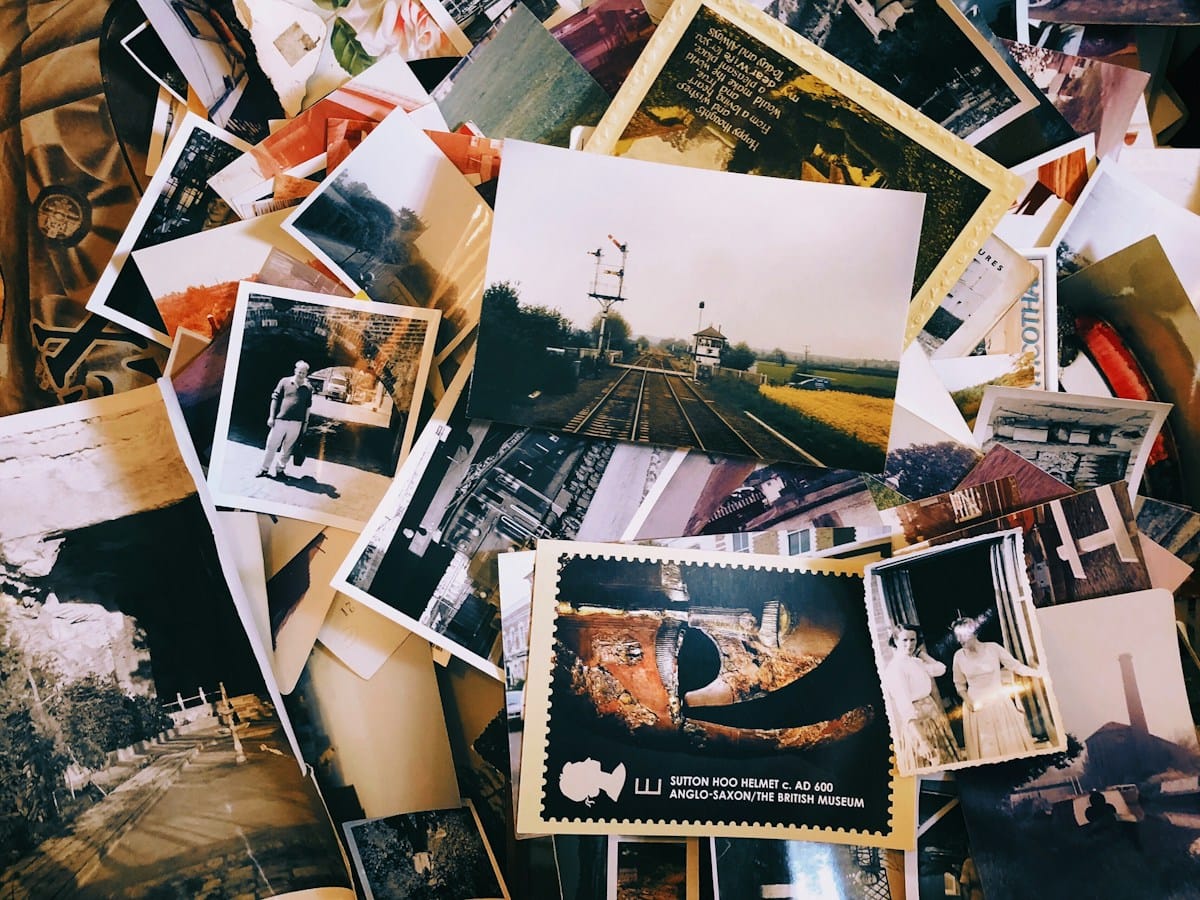
Make a first selection
Begin by placing all possible photographs in one folder or album. Then remove duplicates, blurry shots, and images that do not add much to the story. This first edit makes the next decisions easier.
Next, group the remaining photos by theme, person, date, or event. For example, a family collage might include holidays, celebrations, everyday moments, and portraits. Grouping helps you notice gaps and avoid repeating similar images.
Choose hero images and supporting images
Select one or a few hero images if you want a clear focal point. These photographs can be larger than the rest. Supporting images then add context and variety around them.
Alternatively, use equal-sized frames when every photograph has similar importance. A consistent photo wall grid creates order and makes it easier to accommodate a larger collection. In either case, keep the spacing consistent unless your design intentionally uses an asymmetrical arrangement.
Test the count before finalizing
Do not force every selected photograph into the design. Place the strongest images first, then add supporting photos until the collage feels complete. If the layout becomes crowded, remove the least important pictures.
Finally, zoom out and review the complete composition. Check the balance between light and dark images, the distribution of faces, and the space around the edges. A few small adjustments can make the whole collage feel more polished.
Use a Template When You Have Many Photos
When you have dozens or hundreds of photographs, building a layout from scratch can take time. An editable photo collage template gives you a prepared structure and helps you decide how many photos in a photo collage will fit its frames. You can then focus on choosing images and adjusting the crops.
If you want a large collection with a clear focal point, explore the 260 Photo Collage Template with Center Picture. Its central image and surrounding photo slots provide a structured option for creating a high-capacity memory display.
For a smaller collection, consider the 82 Photo Memory Poster. If you prefer a landscape design, the 100 Photo Memory Poster offers another format to review. Check each product page for the current layout, capacity, and included features before choosing.
Templates are starting points, not a reason to use every available slot. You can prioritize your best photographs and adjust the layout where the editor allows it. For additional layout ideas, review Canva’s photo collage design tools before planning your own composition.
Practical Tips for a Balanced Photo Collage
- Keep the focal point clear. Give the most important photograph enough space to stand out.
- Use consistent spacing. Even gaps help the design look intentional and tidy.
- Balance image sizes. Avoid placing every large image in one corner.
- Check color distribution. Spread dark, bright, and neutral images across the design.
- Limit decorative elements. Borders and captions should support the photographs, not compete with them.
- Preview before printing. Confirm dimensions, image quality, and crops before ordering a print.
Additionally, keep a little breathing room around the outer edge. This margin helps the design feel complete and gives the frame or print boundary space. For print preparation, follow the specifications provided by your chosen printing service.
Common Photo Collage Mistakes to Avoid
Adding photos just to fill empty spaces
Empty space is not always a problem. It can help important images stand out. Instead of adding random pictures, review the balance and adjust spacing or image size first.
Making every photograph too small
A dense collage may preserve many memories, but tiny images can become difficult to recognize. If faces are hard to see, reduce the number of photos or choose a larger print format.
Ignoring the final display size
Do not judge a collage only on a large monitor. A small print changes how much detail viewers can see. Therefore, preview the artwork at the intended dimensions before you finish.
Using too many similar pictures
Several nearly identical photographs rarely add much value. Choose the strongest image from each similar set, then use the available space to show a different person, event, or memory.
Frequently Asked Questions
How many photos should I put in a photo collage?
Start with 4–12 photos for a small design, 12–30 for medium wall art, and 30–100 or more for a large memory poster. Adjust the count based on print size, viewing distance, and image clarity. The right number of photos in a photo collage should keep each important memory easy to recognize.
Is 100 photos too many for a collage?
Not necessarily. One hundred photos can work in a large poster designed for many frames. However, the print must be large enough for the images to remain recognizable, and the layout must keep spacing consistent.
How many photos should a birthday collage include?
For many birthday projects, 20–50 photos provide a useful starting range. Choose a mix of portraits, family memories, friendships, hobbies, and celebrations. Use fewer images if the design or print size is small.
How do I make a collage look full but not crowded?
Use a clear layout, consistent spacing, and a balanced mix of image sizes. Leave some breathing room around the edges and remove photographs that repeat the same moment. A full collage should still be easy to scan.
Can I change the number of photos in a Canva collage template?
It depends on the template structure. Some designs allow you to add, remove, or rearrange frames, while others work best with their original layout. Review the product details and editing instructions before you start.
Conclusion: Choose a Photo Count That Tells Your Story
The right number of photos depends on your print dimensions, viewing distance, layout, and the memories you want to preserve. Small collages often work best with a handful of carefully chosen images. Larger posters can hold many more, provided the photographs remain clear and the design stays balanced.
Start by selecting your strongest images, then organize them into a layout that suits your space. Next, preview the finished design at its intended size and remove anything that makes the composition feel crowded.
If you are planning a high-capacity display, browse ShafuraDesign’s editable photo collage templates to find a structure that suits your collection. Choose the frame count that fits your story, personalize the design, and create a keepsake worth displaying.
Personalized Polaroid Photo Collage, Anniversary Gift (Canva Template)
260 Photo Collage Template with Center Picture, Square Canva Photo Grid, Large Memory Wall Art
Editable 1991 Photo Collage Template, 35th Birthday Number Collage Print, Personalized Year Photo Poster, Canva Digital Download